> ## Documentation Index
> Fetch the complete documentation index at: https://docs.orionramp.com/llms.txt
> Use this file to discover all available pages before exploring further.
# Onramp Webhook
> How to process webhook events
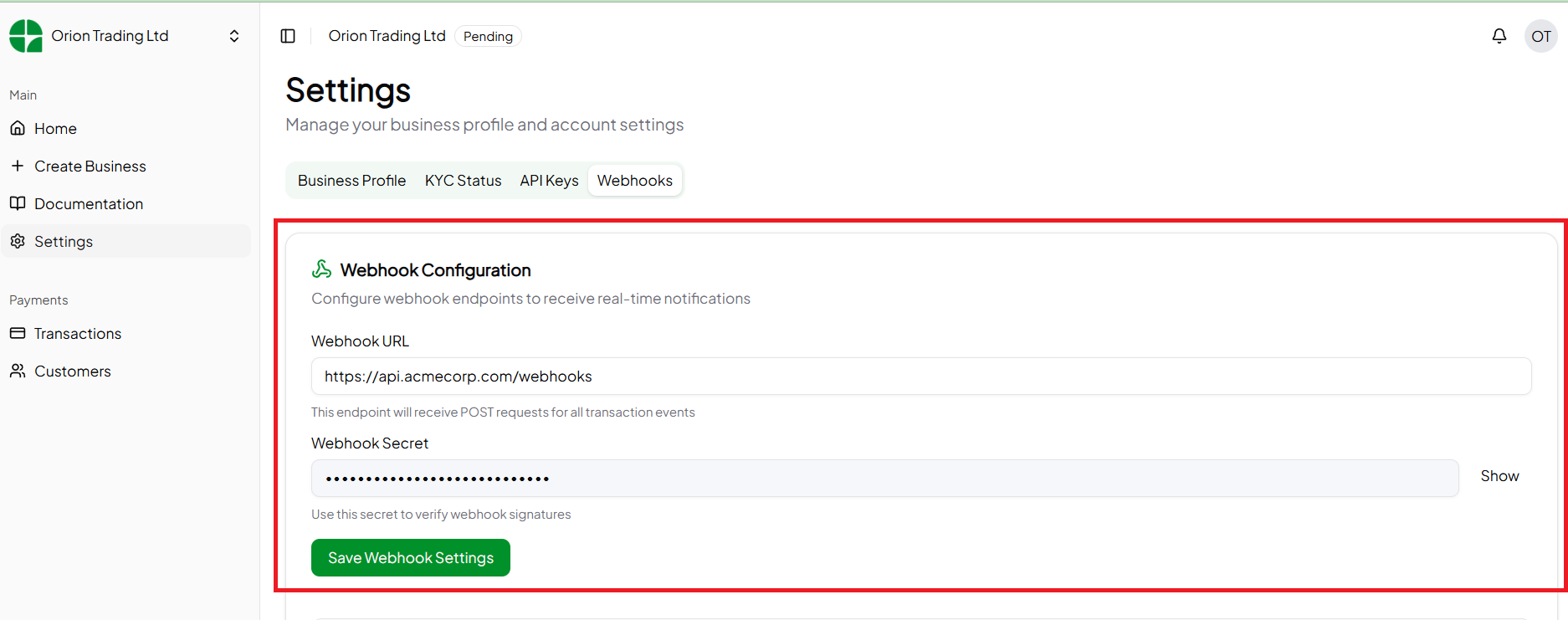
After initializing a payment request you can listen for events from our
platform on the webhook URL you entered. To enter a webhook URL for a
specific environment, navigate to the **Settings > Webhooks** page on the
dashboard and enter the webhook URL as shown below:
 ## Create a Webhook URL
A POST request is sent to your webhoook URL, with a JSON body containing
information about the webhook event. A response with a status code of **200**
should be returned in your webhook endpoint to indicate that your system
has processed our event.
You should avoid long running tasks in your webhook endpoint, if there are long running tasks you can return the response early
An example of how you can process the webhook events sent to your endpoint:
```javascript WebHookHandler.js theme={null}
// POST ENDPOINT FOR YOUR WEBHOOK
app.post("/your/webhook/endpoint", async (req, res) => {
const webhookBody = req.body; // Get webhook event data
// Process data
res.status(200).send("Done"); // Return 200 response
})
```
The webhook event data looks like this:
```json theme={null}
{
event_type: string;
order_id: ;
token: ;
amount: ;
currency: | null;
failureReason?: ;
}
```
## Verify Event Origin
Since your webhook URL is publicly available, you need to verify that events originate from Orion and not a bad actor. You can validate the signature in the event
request's headers to do this.
Events sent by Orion have the **x-orion-signature** header. The value is a HMAC SHA512 signature of the event request body signed using the webhook secret shown in your
dashboard. Verifying that this signature is correct should be done before processing the event. Below is an example of how you can validate the signature:
```javascript validateSignature.js theme={null}
import crypto from "crypto";
const webhookSecret = "your-webhook-secret";
function validateSignature(signature, eventPayload) {
const hash = crypto.createHmac('sha512', webhookSecret).update(JSON.stringify(eventPayload)).digest('hex');
if (hash === signature) {
return true
}
return false
}
```
## Supported Events
The list below shows the possible webhook event types that can be returned:
| Event Type | Description |
| ------------------------ | ----------------------------------------------------------------------------------- |
| charge\_success | The user has charged successfully |
| charge\_failed | The user could not be charged |
| token\_transfer\_pending | The transfer of onramped tokens has been started |
| token\_transfer\_success | The onramped tokens have been transferred successfully |
| account\_not\_associated | The account that was to receive the onramped tokens was not associated to the token |
| token\_transfer\_failed | The transfer of onramped tokens failed |
## Create a Webhook URL
A POST request is sent to your webhoook URL, with a JSON body containing
information about the webhook event. A response with a status code of **200**
should be returned in your webhook endpoint to indicate that your system
has processed our event.
You should avoid long running tasks in your webhook endpoint, if there are long running tasks you can return the response early
An example of how you can process the webhook events sent to your endpoint:
```javascript WebHookHandler.js theme={null}
// POST ENDPOINT FOR YOUR WEBHOOK
app.post("/your/webhook/endpoint", async (req, res) => {
const webhookBody = req.body; // Get webhook event data
// Process data
res.status(200).send("Done"); // Return 200 response
})
```
The webhook event data looks like this:
```json theme={null}
{
event_type: string;
order_id: ;
token: ;
amount: ;
currency: | null;
failureReason?: ;
}
```
## Verify Event Origin
Since your webhook URL is publicly available, you need to verify that events originate from Orion and not a bad actor. You can validate the signature in the event
request's headers to do this.
Events sent by Orion have the **x-orion-signature** header. The value is a HMAC SHA512 signature of the event request body signed using the webhook secret shown in your
dashboard. Verifying that this signature is correct should be done before processing the event. Below is an example of how you can validate the signature:
```javascript validateSignature.js theme={null}
import crypto from "crypto";
const webhookSecret = "your-webhook-secret";
function validateSignature(signature, eventPayload) {
const hash = crypto.createHmac('sha512', webhookSecret).update(JSON.stringify(eventPayload)).digest('hex');
if (hash === signature) {
return true
}
return false
}
```
## Supported Events
The list below shows the possible webhook event types that can be returned:
| Event Type | Description |
| ------------------------ | ----------------------------------------------------------------------------------- |
| charge\_success | The user has charged successfully |
| charge\_failed | The user could not be charged |
| token\_transfer\_pending | The transfer of onramped tokens has been started |
| token\_transfer\_success | The onramped tokens have been transferred successfully |
| account\_not\_associated | The account that was to receive the onramped tokens was not associated to the token |
| token\_transfer\_failed | The transfer of onramped tokens failed |